


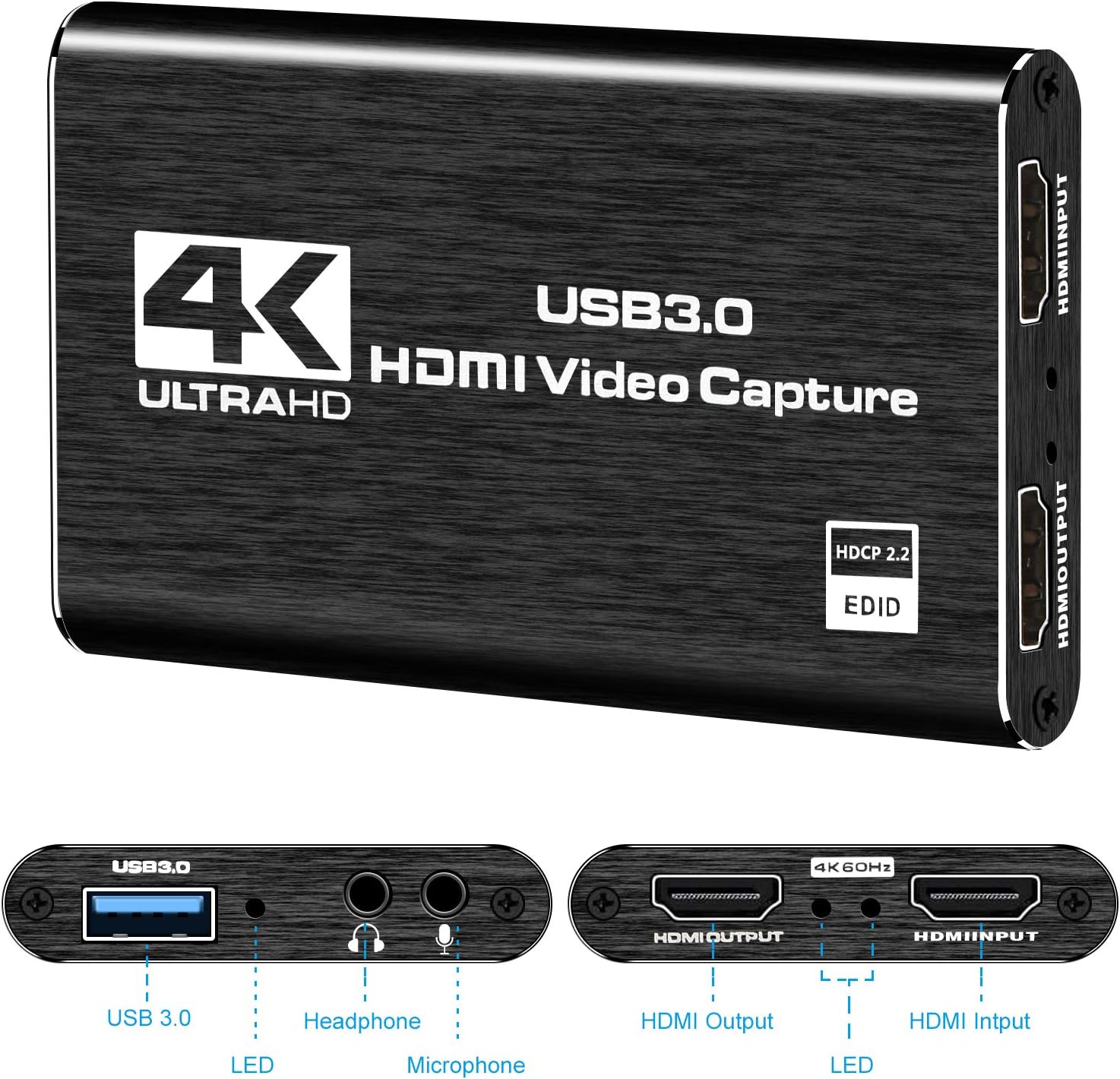



Capture Card Nintendo Switch, 4K HDMI Video Capture Card, 1080P 60FPS, HDMI to USB 3.0 Capture Card for Streaming Work with Camera/Xbox/PS4/PS5/PC/OBS
$27.99
Price: $27.99
(as of Feb 08, 2026 14:47:48 UTC – Details)
Product description


No Delay
Video live broadcast without delay, no lag, professional-level video capture solution

Stable working performance
Reliable performance, no lag, record important content anytime and anywhere, avoid the trouble of losing important information due to lag, perfect

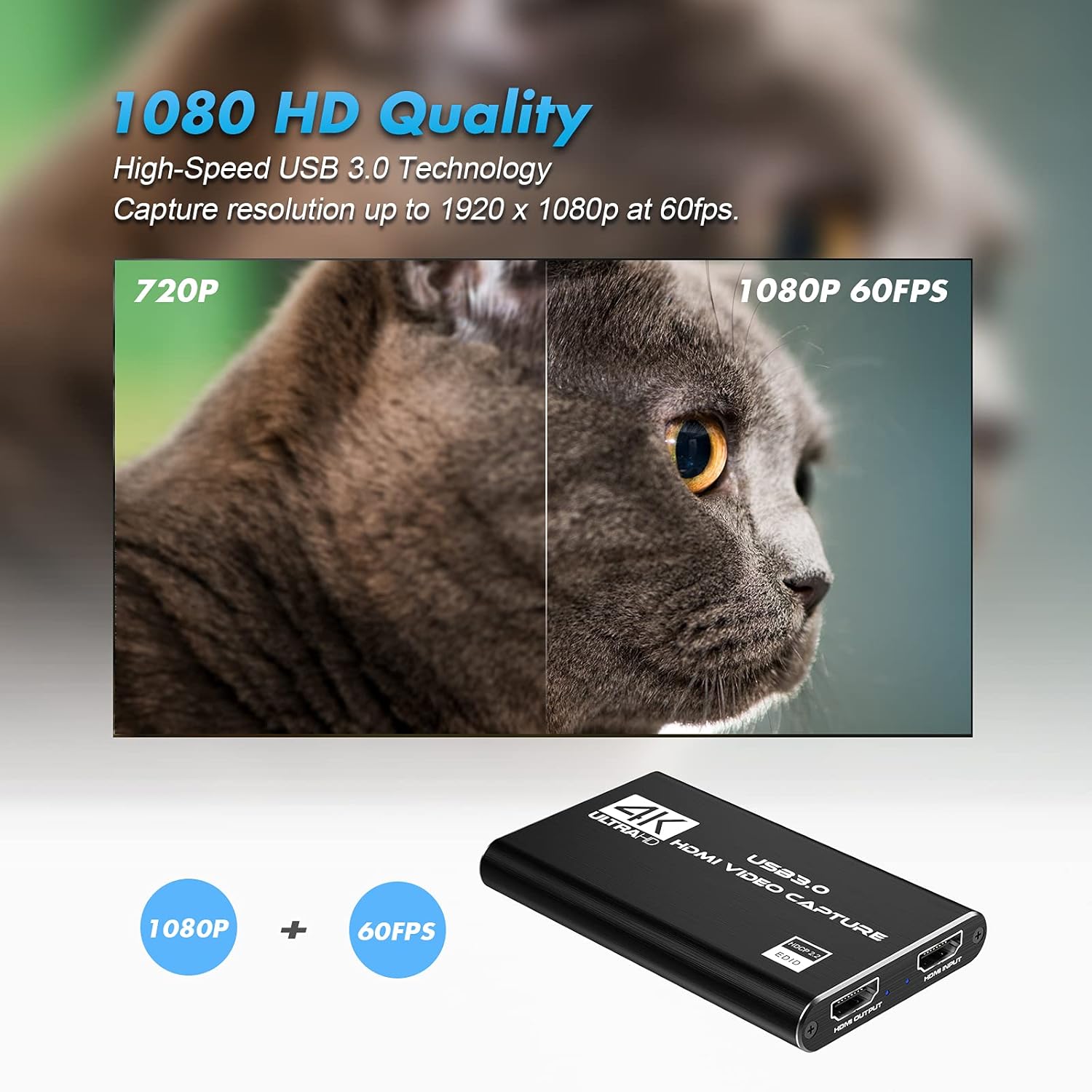
4K HD Capture
It is suitable for you to capture high-definition video at any time, with 4K 60FPS input and 1080P output, which is much clearer than 720P products, and the colors are more delicate and elegant
Add to Cart
Customer Reviews
3.8 out of 5 stars 20
—
4.3 out of 5 stars 1,624
4.1 out of 5 stars 128
4.4 out of 5 stars 34
Price
— no data
— no data
$27.99$27.99
— no data
— no data
PC Hardware Interface
USB3.0 + HDMI USB3.0 + HDMI USB3.0 + HDMI USB3.0 + HDMI USB3.0 + HDMI
Operating System
Windows 7,8,10,11,X Mac OS 10.9 or later, Linux,Android 8 or later. Windows 7,8,10,11,X Mac OS 10.9 or later, Linux,Android 8 or later. Windows 7,8,10,11,X Mac OS 10.9 or later, Linux,Android 8 or later. Windows 7,8,10,11,X Mac OS 10.9 or later, Linux. Windows 7,8,10,11,X Mac OS 10.9 or later, Linux.
Input interface
HDMI HDMI+3.5mm Mic+3.5mm AUX HDMI+3.5mm Mic+3.5mm AUX HDMI HDMI
Maximum input resolution
4K 60Hz 4K 60Hz 4K 60Hz 1080P 60Hz 1080P 60Hz
Maximum output resolution
1080P 60Hz 1080P 60Hz 1080P 60Hz 1080P 60Hz 1080P 60Hz
Supported input format
MJPG,MJPEG MJPG,MJPEG MJPG,MJPEG YUV,MJPG,MJPEG YUV,MJPG,MJPEG
Support acquisition software
VLC、OBS 、Amcap, etc VLC、OBS 、Amcap, etc VLC、OBS 、Amcap, etc VLC、OBS 、Amcap, etc VLC、OBS 、Amcap, etc
Conversion Type
1.HDMI TO HDMI loop out, 2.HDMI TO USB3.0 1.HDMI TO HDMI loop out, 2.3.5mm Mic TO 3.5mm AUX, 3.HDMI TO USB3.0 1.HDMI TO HDMI loop out, 2.3.5mm Mic TO 3.5mm AUX, 3.HDMI TO USB3.0 1.HDMI TO HDMI loop out, 2.HDMI TO USB3.0 1.HDMI TO HDMI loop out, 2.HDMI TO USB3.0
Work Best With
Game console, DVD, digital audio, TV, set-top box, DV, camcorder Game console, DVD, digital audio, TV, set-top box, DV, camcorder, Live streaming Game console, DVD, digital audio, TV, set-top box, DV, camcorder, Live streaming Game console, DVD, digital audio, TV, set-top box, DV, camcorder, Live streaming Game console, DVD, digital audio, TV, set-top box, DV, camcorder, Live streaming
Accessories
1.Video capture card, 2.USB3.0 male to male data cable 0.6M with PE bag, 3.multi-language manual 1.USB3.0 male to male data cable 0.6M with PE bag 2. The HDMI cable (the length of the cable is 1.2M) is equipped with a PE bag 3. multi-language manual 1.USB3.0 male to male data cable 0.6M with PE bag 2. The HDMI cable (the length of the cable is 1.2M) is equipped with a PE bag 3. multi-language manual 1.Video capture card, 2. The HDMI cable (the length of the cable is 1.2M) is equipped with a PE bag 3.multi-language manual 1.USB3.0 male to male data cable 0.6M with PE bag 2. The HDMI cable (the length of the cable is 1.2M) is equipped with a PE bag 3. multi-language manual
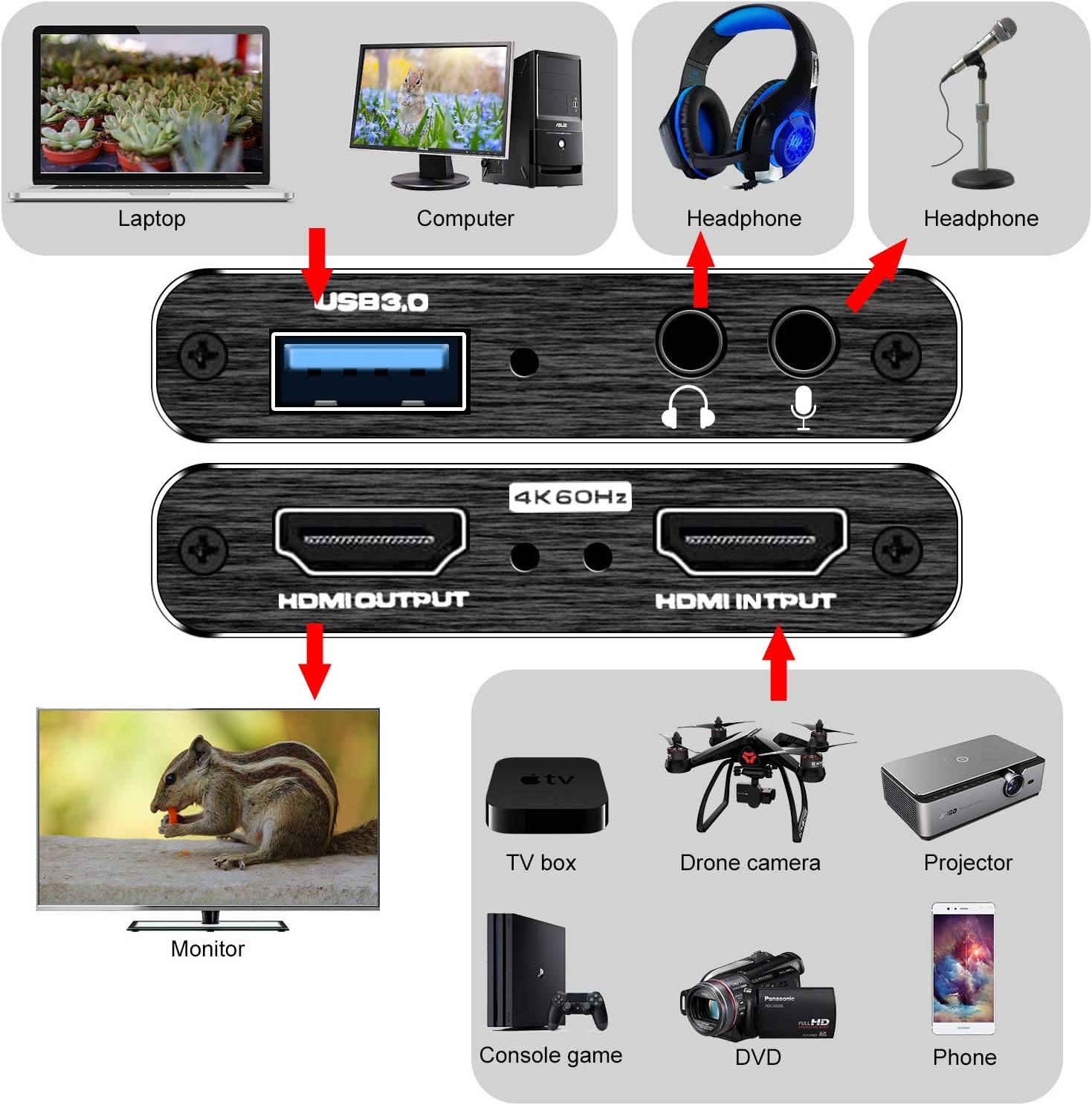
【1080P HD High Quality】Capture resolution up to 1080p for video source and it is ideal for all HDMI devices such as PS4, PS3, Xbox One, Xbox 360, Wii U, DVDs, DSLR, Camera, Security Camera and set top box. Note: Video input supports 4K30/60Hz and 1080p120/144Hz. Does not support 4K120Hz/144Hz. Output supports up to 2K30Hz.
【Plug and Play】No driver or external power supply required, true PnP. Once plugged in, the device is identified automatically as a webcam. Detect input and adjust output automatically. Won’t occupy CPU, optional audio capture. No freeze with correct setting.
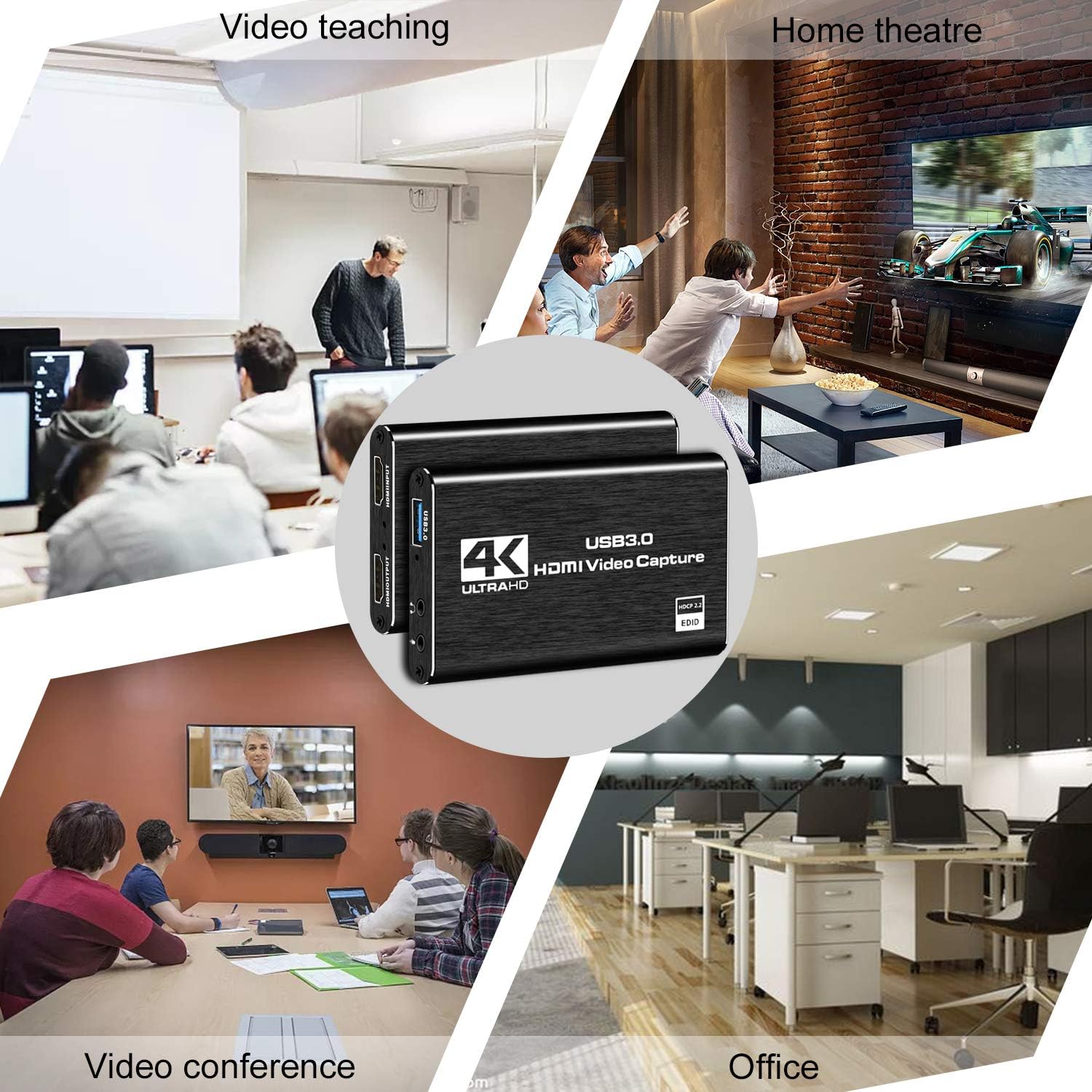
【Compatible with Multiple Systems】suitable for Windows and Mac OS. High speed USB 3.0 technology and superior low latency technology makes it easier for you to transmit live streaming to Twitch, Youtube, Facebook, Twitter, OBS, Potplayer and VLC.
【HDMI LOOP-OUT】Based on the high-speed USB 3.0 technology, it can capture one single channel HD HDMI video signal. There is no delay when you are playing game live.
【Support Mic-in for Commentary】Kedok capture card has microphone input and you can use it to add external commentary when playing a game. Please note: it only accepts 3.5mm TRS standard microphone headset.
5 reviews for Capture Card Nintendo Switch, 4K HDMI Video Capture Card, 1080P 60FPS, HDMI to USB 3.0 Capture Card for Streaming Work with Camera/Xbox/PS4/PS5/PC/OBS


Related products


etguuds USB A to USB C Cable 6ft, 2-Pack, 3A Fast Charging Type C Charger Cord for iPhone 17 16 15 Pro Max 16e 17 Air, Samsung Galaxy S25 S24 S23 S22 S21 S20 A17 A16 A56 A55 Flip Fold, Gray


tomtoc 360 Protective Laptop Shoulder Bag for 13 Inch 2025 MacBook Air M4/A3240, M3/A3113, M2/A2681, M1/A2337, MacBook Pro M2/M1, 13-in Surface Pro 11th AI/10/9, Water-Resistant Accessory Case


USB 3.0 Hub, 4 Port USB Hub Splitter, USB A Expander Portable USB Adapter Multiport Data Hub for Laptop, iMac Pro, MacBook Air, Mac mini/Pro, Surface Pro, USB Flash Drives, and Mobile HDD-Black

Amazon Customer –
Better than expected, 4K pass through (only 60fps) but full 4k streaming, No drivers needed. 10/10
Overall best bang for the buck. READ THIS REVIEW!So I couldnt find any info on what hz this could run at and that was important to me. I run 4k displays and wanted to record things from time to time. For my girlfriend this works great, and for many tasks it works fantastic. Read until the end for my view.Facts:Using numerous cables I got the same results on pass through:4K 60F HZ / FPS, no noticeable latency (did not measure), also I dont believe HRD passed through I will verify and update my review.1080P HZ / FPS. This is sufficient for most higher end gaming if you are doing a live broadcast. Which I will address below.I personally just use an OBS with a remote stream typically but I wanted any easy to plug in, low work, low effort solution when I needed to plug in fast. This product did EXACTLY that. For simply making a video tutorial, recording my screen for desktop use, server use, etc. This was amazing. And not only that at this price point it is cheap enough to use this to remotely manage video out on my servers. +2 points right there.I wish it would handle 4K pass through (not record I dont care about getting over 30-60FPS which I was able to get) to my main display when I play a game for when friends want to watch. But thats fine I can do a remote stream for them if it is important for me to get 4k @ 120-240hz which most cards barely handle anyway.Now the best part. I plugged this into my pc, multiple Mac machines. No setup, no drivers needed. My obs 100% picked it up immediately. From opening the box to streaming I was setup within 5 minutes. Cables were supplied. I wish they had a newer one (which they might already have) with USB c or at least a higher HDMI pass through.Due to how cheap these were and how reliable / easy it was for compatibility I actually plan to buy some for remote sever management uses instead of using long HDMI cables when I needed to do bare metal work for servers without network based management.Overall everyone told me to not buy this. Wrong, buy it until you are ready to commit to a higher priced product if you need the resolution / Frame rate. The recording quality was 100% spot on of what I saw on my gaming computer, connection was easy as can be, streaming was the easiest thing I have done yet.
William –
No latency when you switch outputs. Super low latency when playing through OBS.
Love this capture card it’s cheap but gets the job done! I have been using this to work and play on my raspberry pi 5 retro gaming box on my PC without switching monitor inputs. With OBS I can stream the nostalgia to my friends in Discord as well. Super fast response time little to no latency.
Baltazar Valdez –
Great! Mac Users!
Works as intended! I’m not crazy about NEEDING to have it 4k or anything like that. I just want to capture myself playing my PS5 games.The video looks great and I don’t feel any crazy lag from the PS5 to the OBS capture. I’m very satisfied with the results.Now, I’m on a Mac Mini and being new to this I was confused as heyull to get the PS5 audio in my videos. I got the mic audio and camera going though. I tried to follow the instructions, watched YouTube tutorials, etc. Still couldn’t.Figured out to go to Settings (in the Mac, not OBS), go to Sound, and on Input choose USB3.0 Audio.Now in OBS, in your Sources, click on the + icon and choose Audio Input Capture, Label it whatever you want, click ok, and in the drop-down menu choose USB 3.0 Audio. The PS5 audio should now be in the video and you can confirm on the Audio Mixer on the right in OBS to see the bar moving. NOTICE: If you don’t hear anything, make sure to open the menu on your PS5 from the PS5 controller by pressing the PS button, go to the speaker icon, press Output Device and choose HDMI Device (TV). If you have anything else chosen like your headset, you won’t hear any sound.Now, great! Got that going. How do I listen to my PS5 audio from my speakers or headphones with all that going? I don’t want to connect headphones to the capture card.Remember the Audio Input Capture you added in your Sources that you relabeled to get the PS5 audio in your videos? Yeah, that’s the capture card audio. In OBS, to the right of Sources there’s the Audio Mixer where you see all your audio devices working. Click on the 3 dots on the capture card one that you relabeled that brings the PS5 audio in. Then click on Advanced Audio Properties. A window will pop up, find the capture card device you relabeled, and under Audio Monitoring click on the dropdown and choose Monitor and Output.Now you can hear your PS5 coming from your speakers or whatever is connected to your computer instead of having to connect a headset to the capture card itself.On my Mac I have a pretty cool set up. I don’t have two monitors but I have an iPad. I connected my iPad as the second monitor, made it the main screen under Mac settings > Displays, and then switched my main monitor to PS5. Now I’m controlling OBS through my iPad and can see what I’m doing since I only have one gaming monitor. For sound I’m using my AirPods to connect to the Mac and my PS5 sound is there! Now I can record my gameplay, my voice, and capture it all.Thanks all!
Carter Prescott –
Resolution issue needs workaround but mostly good!
Works for the most part but seems to have a slight issue with the resolution. You’ll have to stretch it a little bit in OBS. It’s janky, but it works, it’s cheap, and it’s plug and play so I can’t complain.
A.C. –
At this price point, it’s fantastic
For the price point, it’s solid. My previous capture card was having issues, so was looking for another since I run my cable to my laptop to watch due to not having a tv. It works fine with OBS. Sound and image match up, as some cards are known to have a slight delay so audio and image don’t match up. I haven’t noticed such a delay on this one. At first I thought the image colors were slightly muted but then ran side by side comparison with amazon running the same movie as I did through the capture card, and figured out it was just the movie I was watching. The only thing I wish would be that it had a USB-C output instead of just coming with an adaptor to plug into a USB-C as it comes with double sided cord and the output on the device is only usb or HDMI.