

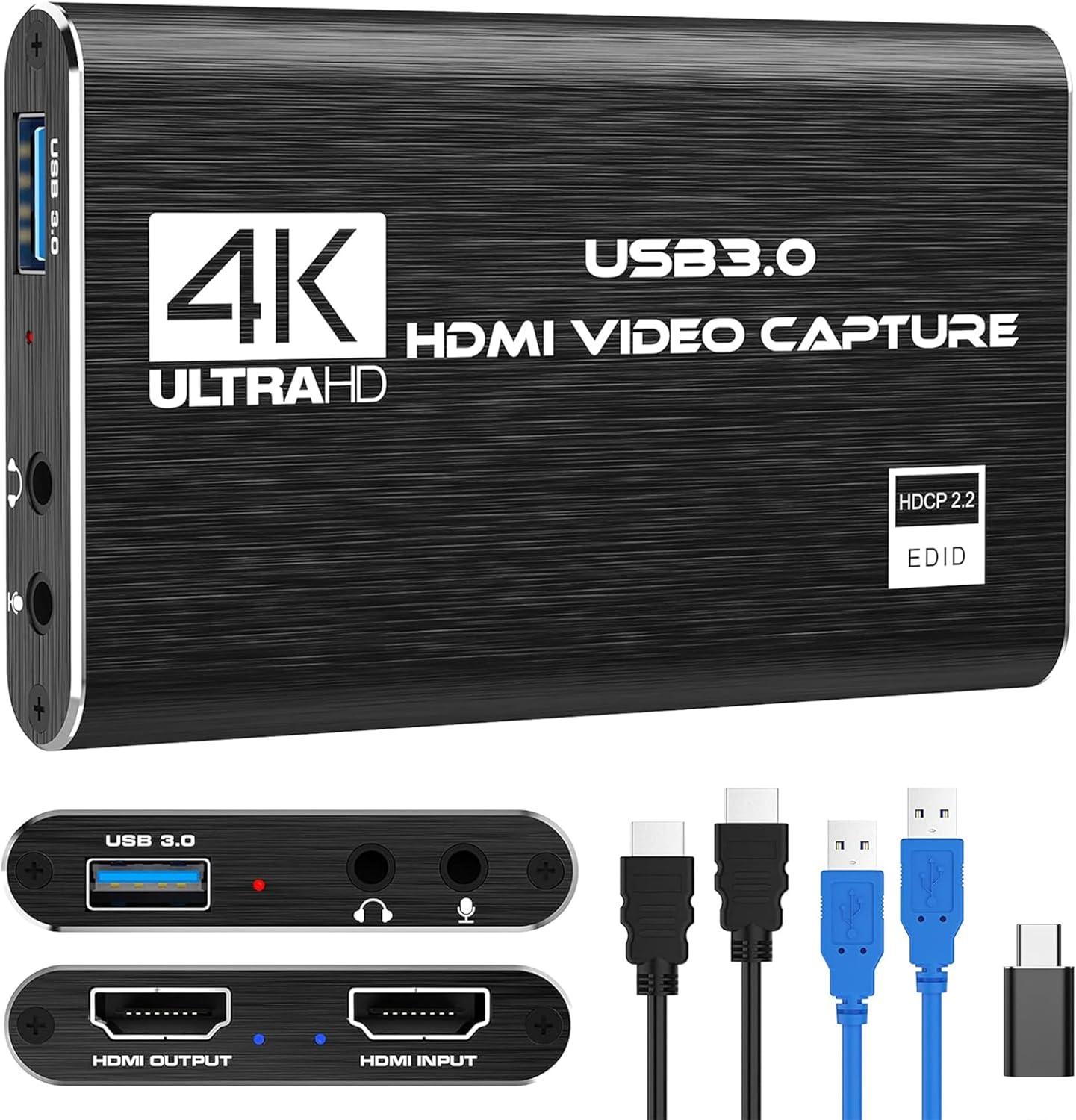
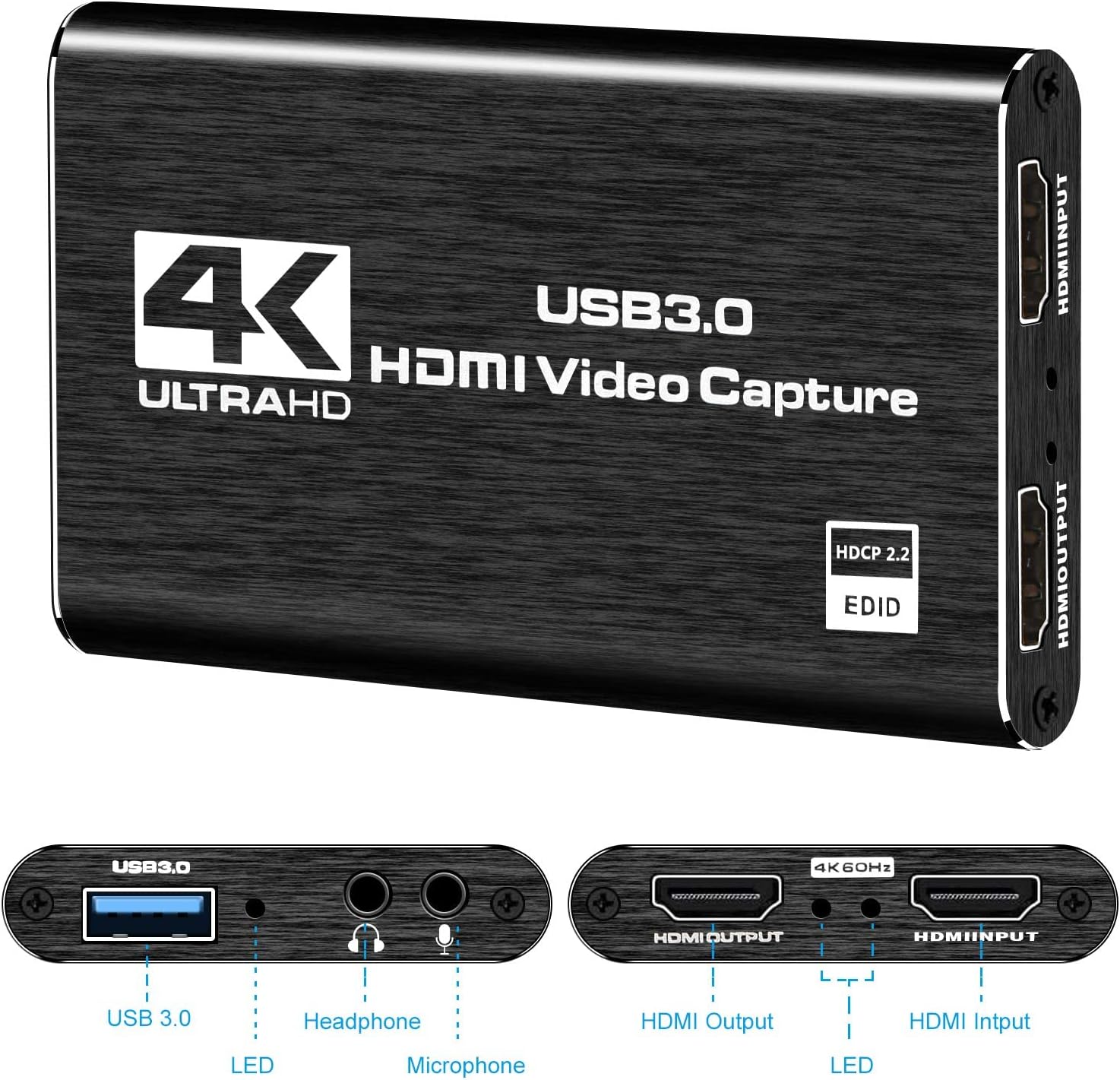
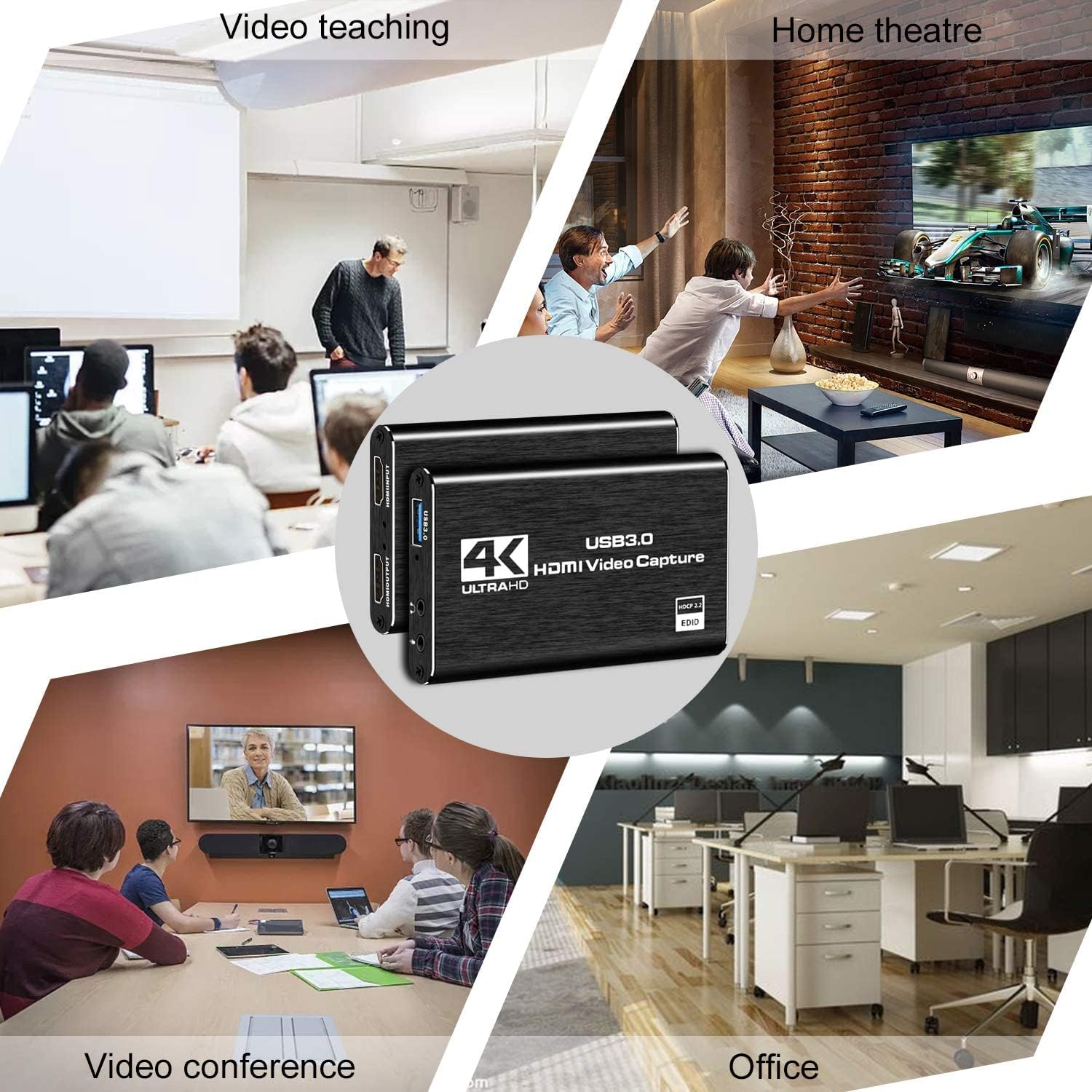
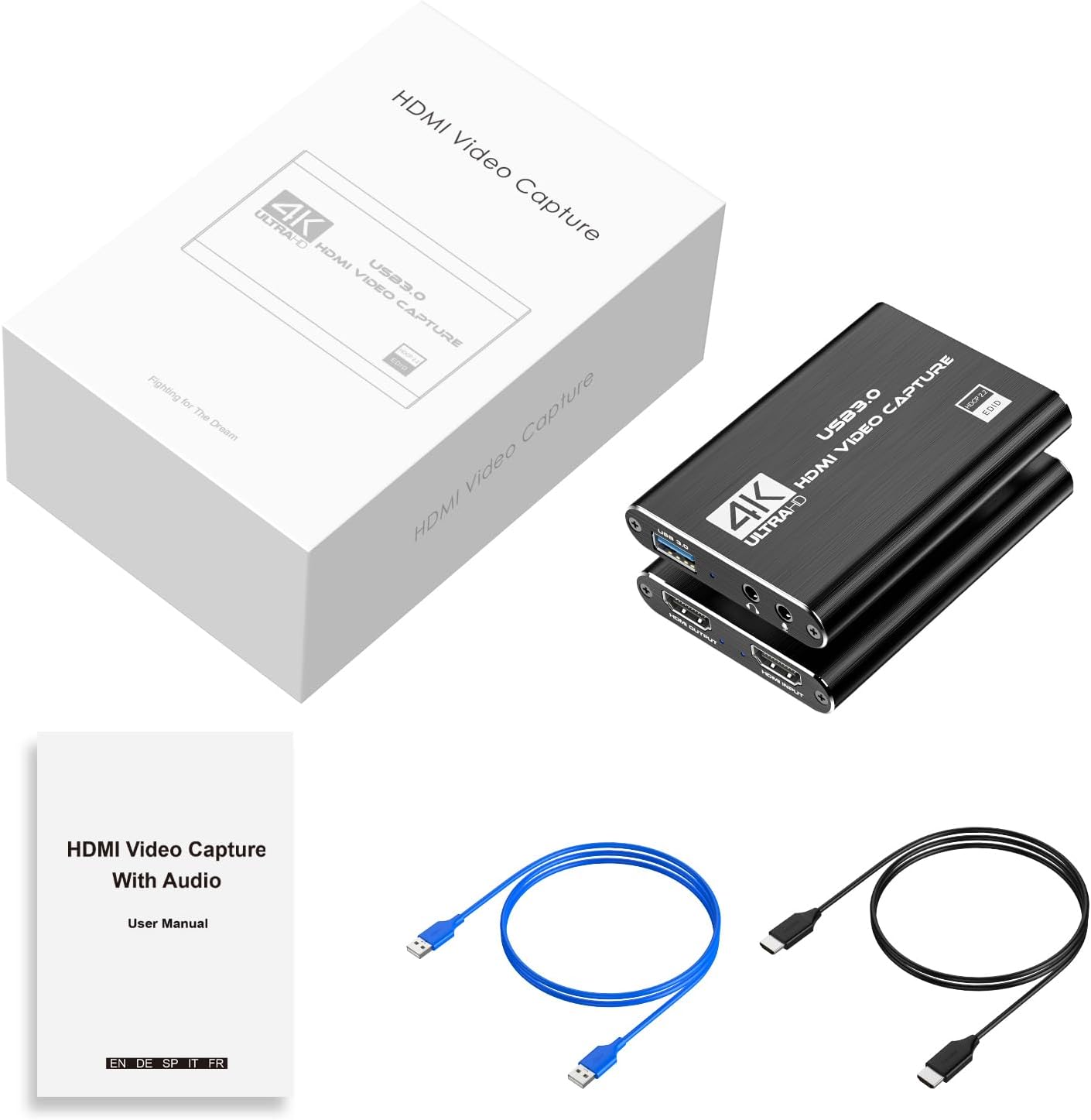

4K HDMI Capture Card for Streaming, Full HD 1080P 60FPS USB 3.0 Cam Link Game Audio Video Capture Card, Work with Camera/Nintendo Switch/Xbox/PS4/PS5/PC/OBS (Black)
$23.99
Price: $23.99
(as of Feb 11, 2026 12:46:18 UTC – Details)
Product description


1 Recording and loop output
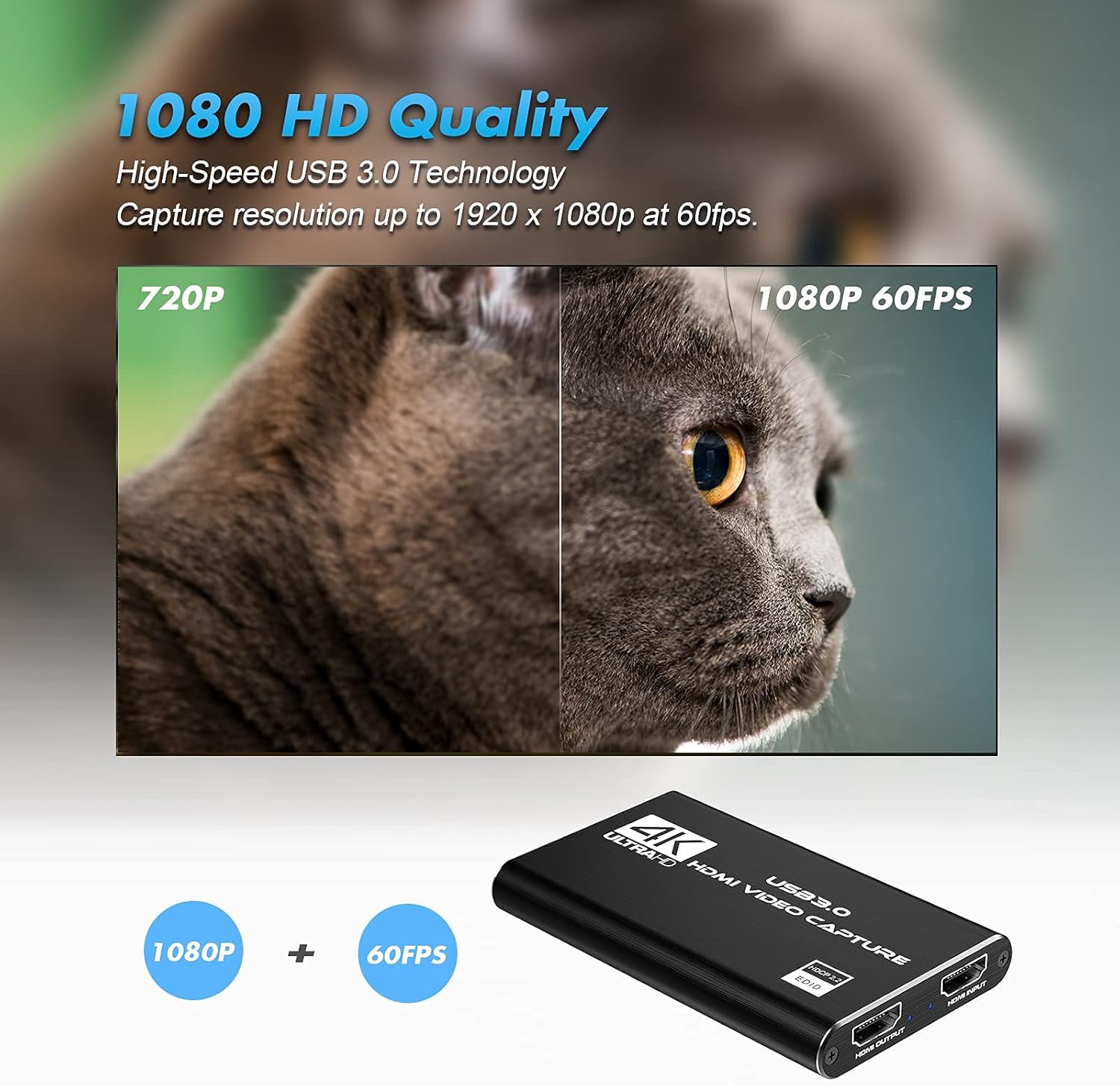
2 YUY2 1080P 60PFS
3 USB 3.0
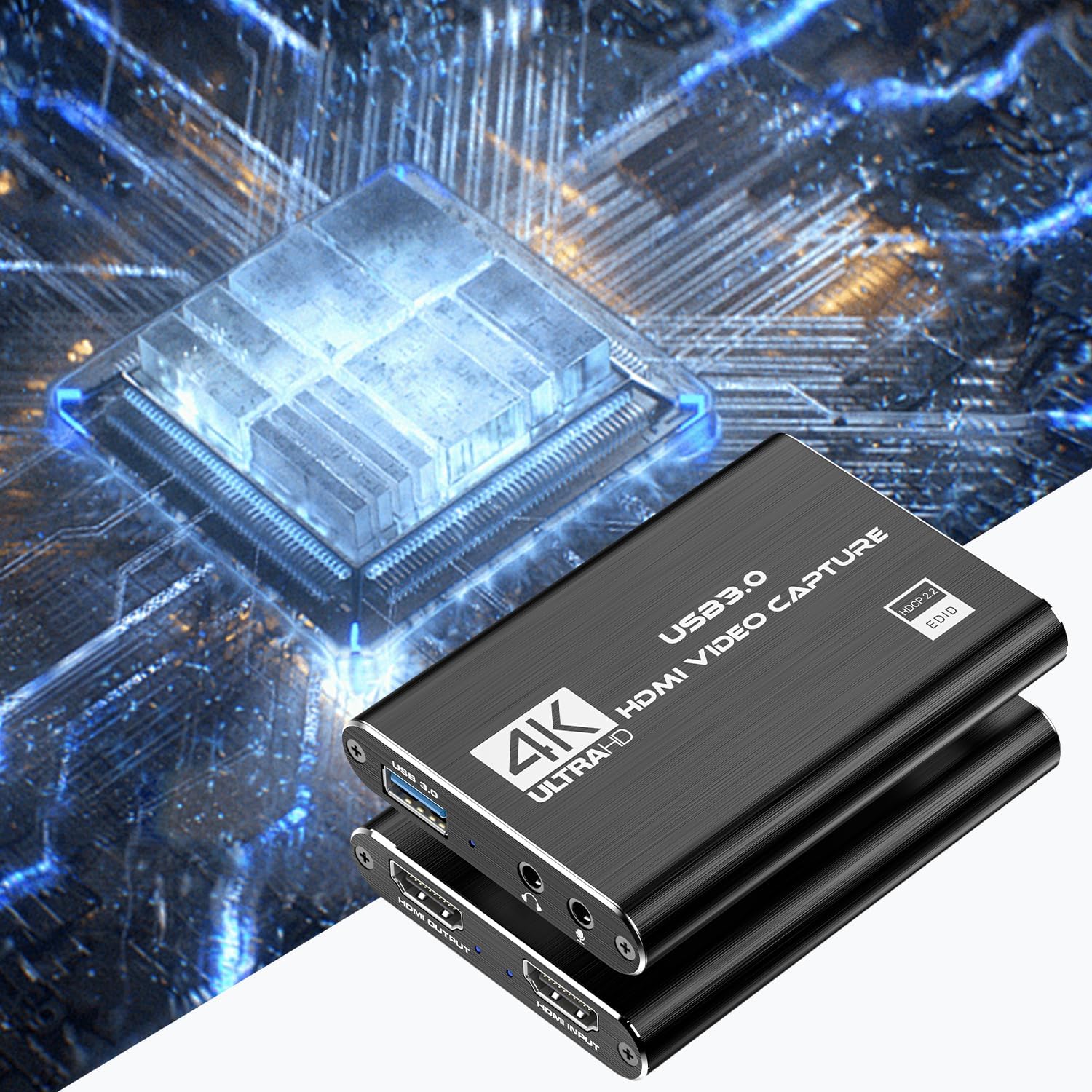
4 Smart Chip
5 Compatible


OBS Studio Setup
1. Open OBS, create a new source under Sources by clicking “+”, select “Video Capture Device”, name it, then set:
Device: USB3.0 Video; Audio Output Mode: Capture Mode Only; Use custom audio device: Digital Audio Interface (USB 3.0 Audio)
2. In OBS settings → Audio:
Disable all Global Audio Settings except Mic/Auxiliary Audio; Set Mic/Auxiliary Audio to Digital Audio Interface (USB 3.0 Audio)
3. Under the Audio tab:
Right-click Mic/Auxiliary Audio → Advanced Audio Properties → Set Audio Monitoring to “Monitor Only (Mute Output)”
4. In PC settings → System → Sound:
Set Input to Laptop Microphone; All Sound Devices → Input Devices → Digital Audio Interface. Ensure it is NOT set to default. All Sound Devices → Input Devices → Laptop Microphone. Ensure it IS set to default.
5. In Discord:
If prompted to switch audio device, choose “don’t switch”; User Settings > Voice & Video > Input > Laptop Microphone; User Settings > Voice & Video > Output > Laptop Speakers.
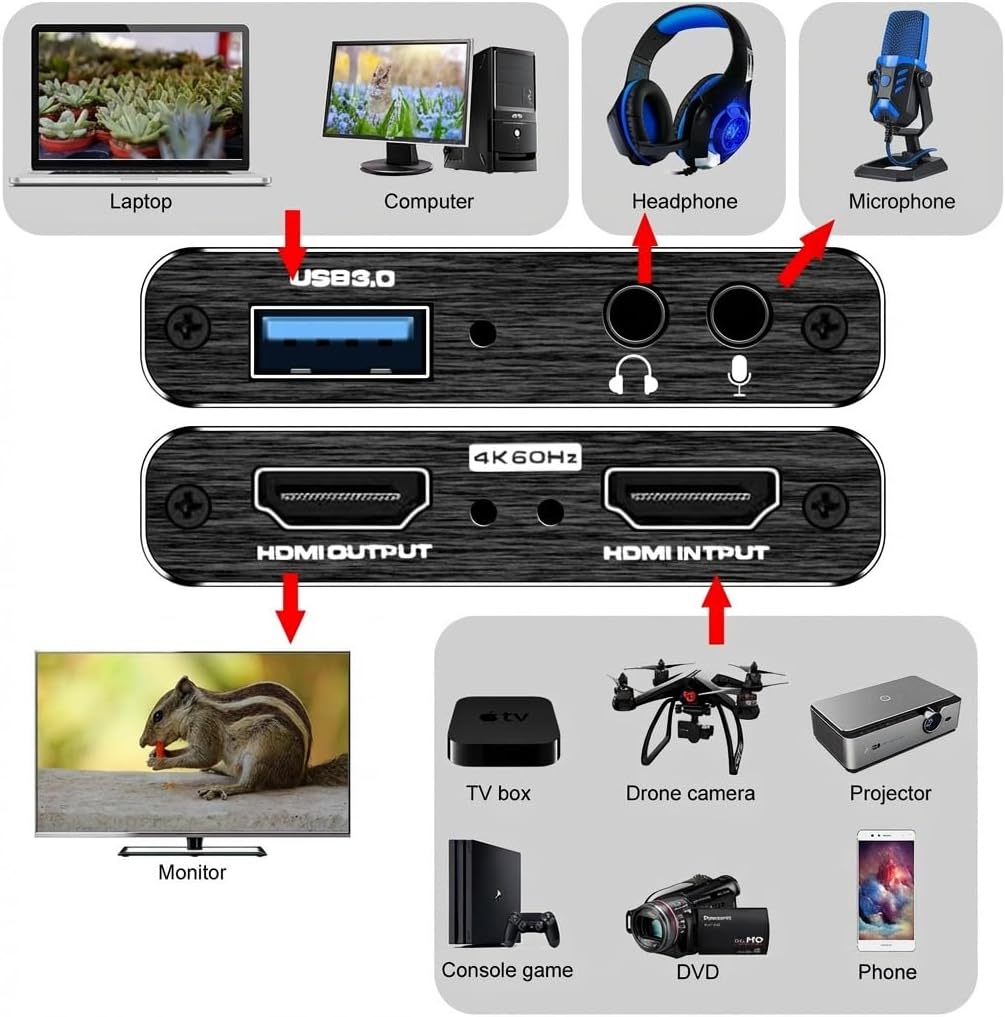
【1080P HD High Quality】Capture resolution up to 1080p for video source and it is ideal for all HDMI devices such as PS4, PS3, Xbox One, Xbox 360, Wii U, DVDs, DSLR, Camera, Security Camera and set top box.
【Plug and Play】No driver or external power supply required, true PnP. Once plugged in, the device is identified automatically as a webcam. Detect input and adjust output automatically. Won’t occupy CPU, optional audio capture. No freeze with correct setting.
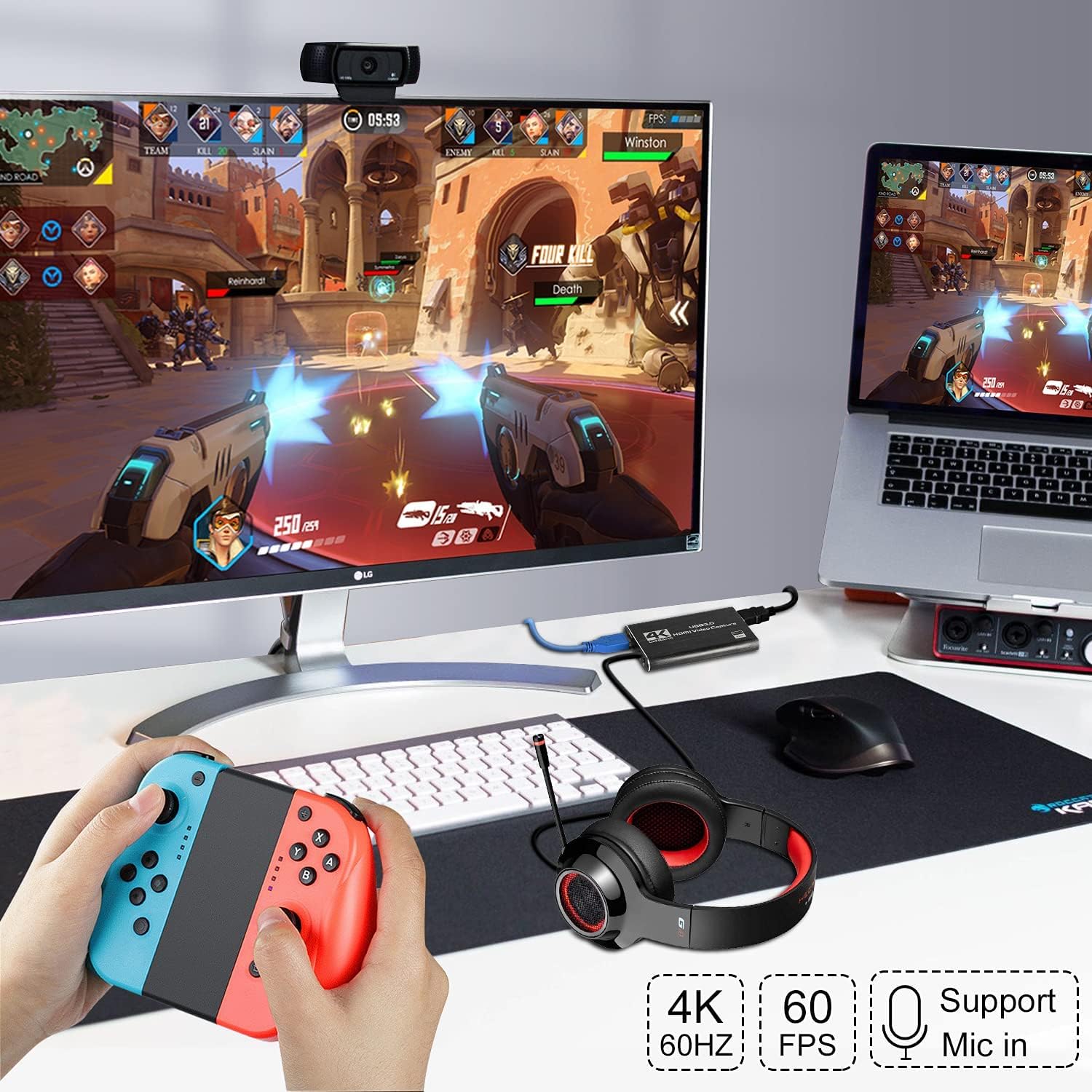
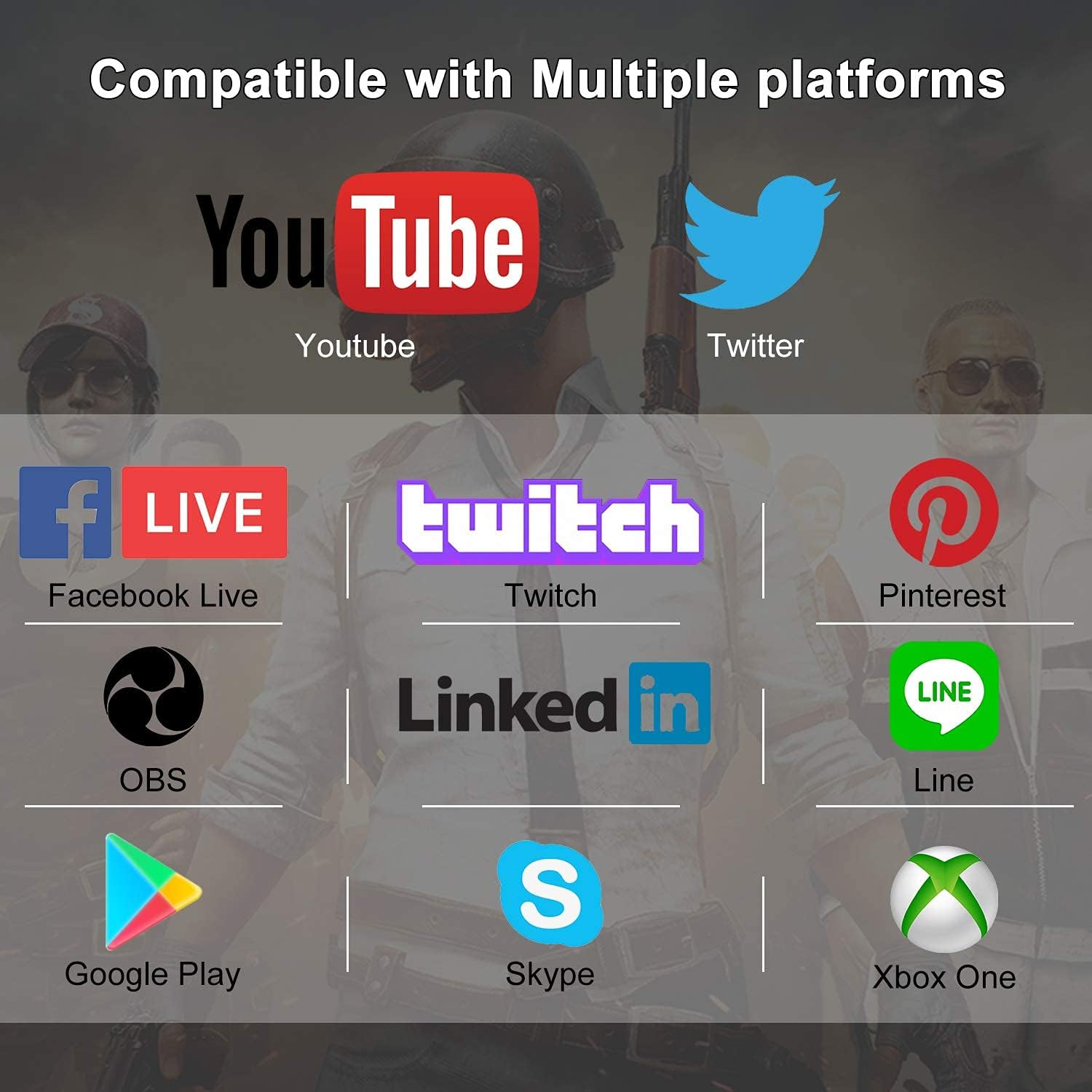
【Compatible with Multiple Systems】suitable for Windows and Mac OS. High speed USB 3.0 technology and superior low latency technology makes it easier for you to transmit live streaming to Twitch, Youtube, Facebook, Twitter, OBS, Potplayer and VLC.
【HDMI LOOP-OUT】Based on the high-speed USB 3.0 technology, it can capture one single channel HD HDMI video signal. There is no delay when you are playing game live.
【Support Mic-in for Commentary】Kedok capture card has microphone input and you can use it to add external commentary when playing a game. Please note: it only accepts 3.5mm TRS standard microphone headset.
13 reviews for 4K HDMI Capture Card for Streaming, Full HD 1080P 60FPS USB 3.0 Cam Link Game Audio Video Capture Card, Work with Camera/Nintendo Switch/Xbox/PS4/PS5/PC/OBS (Black)


Related products


Capture Card Nintendo Switch, 4K HDMI Video Capture Card, 1080P 60FPS, HDMI to USB 3.0 Capture Card for Streaming Work with Camera/Xbox/PS4/PS5/PC/OBS
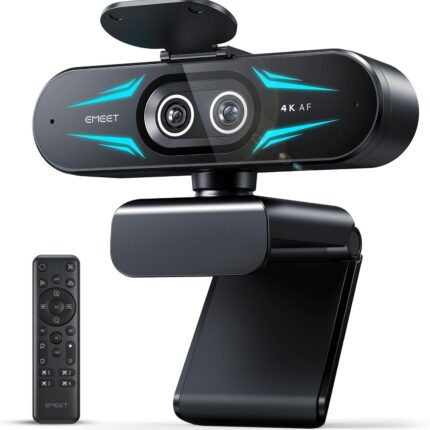
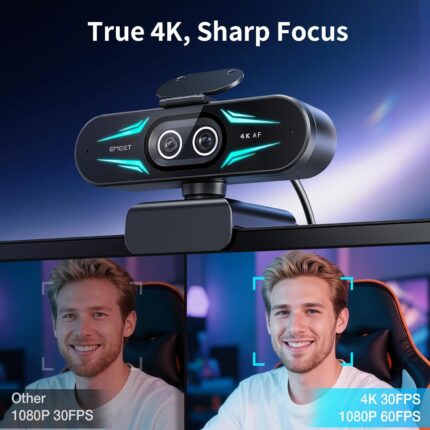
EMEET C60E Dual-Camera 4K Webcam for Streaming, Wide-Angle and Telephoto Cameras, Max 11X Hybrid Zoom & PDAF Autofocus, Remote Control, RGB Lighting, 2 Mics, Ideal for Livestreaming and Online Meeting

Gaming Chair with Footrest Racing Style Lumbar Support Massager Video Game Chair with Metal Legs, High Back Reclining Gamer Chair with Headrest, 360° Swivel Office Computer Desk Chair (White)



Christopher Li –
Great! Mac Users!
Works as intended! I’m not crazy about NEEDING to have it 4k or anything like that. I just want to capture myself playing my PS5 games.The video looks great and I don’t feel any crazy lag from the PS5 to the OBS capture. I’m very satisfied with the results.Now, I’m on a Mac Mini and being new to this I was confused as heyull to get the PS5 audio in my videos. I got the mic audio and camera going though. I tried to follow the instructions, watched YouTube tutorials, etc. Still couldn’t.Figured out to go to Settings (in the Mac, not OBS), go to Sound, and on Input choose USB3.0 Audio.Now in OBS, in your Sources, click on the + icon and choose Audio Input Capture, Label it whatever you want, click ok, and in the drop-down menu choose USB 3.0 Audio. The PS5 audio should now be in the video and you can confirm on the Audio Mixer on the right in OBS to see the bar moving. NOTICE: If you don’t hear anything, make sure to open the menu on your PS5 from the PS5 controller by pressing the PS button, go to the speaker icon, press Output Device and choose HDMI Device (TV). If you have anything else chosen like your headset, you won’t hear any sound.Now, great! Got that going. How do I listen to my PS5 audio from my speakers or headphones with all that going? I don’t want to connect headphones to the capture card.Remember the Audio Input Capture you added in your Sources that you relabeled to get the PS5 audio in your videos? Yeah, that’s the capture card audio. In OBS, to the right of Sources there’s the Audio Mixer where you see all your audio devices working. Click on the 3 dots on the capture card one that you relabeled that brings the PS5 audio in. Then click on Advanced Audio Properties. A window will pop up, find the capture card device you relabeled, and under Audio Monitoring click on the dropdown and choose Monitor and Output.Now you can hear your PS5 coming from your speakers or whatever is connected to your computer instead of having to connect a headset to the capture card itself.On my Mac I have a pretty cool set up. I don’t have two monitors but I have an iPad. I connected my iPad as the second monitor, made it the main screen under Mac settings > Displays, and then switched my main monitor to PS5. Now I’m controlling OBS through my iPad and can see what I’m doing since I only have one gaming monitor. For sound I’m using my AirPods to connect to the Mac and my PS5 sound is there! Now I can record my gameplay, my voice, and capture it all.Thanks all!
Aaron –
Great for streaming your console to OBS
This is just what you need if you want to stream from your console to OBS. This is the 3rd one ive bought as i have 2 xbox s’s an xbox x and also pc so they work well to use. You need to make sure you have the blue USB 3.0 slot at first or you wont find it to work very well. If you use regular 2.0 usb then itll either be black and white or just a screen full of color. DO NOT USE UNLESS YOU HAVE USB 3.0 PLUG
Romario Gayle –
Capture card
I just starting stream had an issue with an app in using so decided to grab a capture card.. there was some delay but the wait was worth it.. easy connecting and setup and works good for my streaming now
Alejo Garcia –
Great Budget Capture Card for Beginners
This capture card works great and is a solid budget option, especially for beginners just starting out with streaming and testing things. The quality isn’t the best—there’s a small delay—but it’s not terrible and very usable. For the price, it’s definitely worth it. It’s a great starter capture card to get you going, and over time you can always upgrade to something higher-end. I’ve had mine for a while and it still works fine, so no complaints there.
Kolton –
YESSSSSS
ive used this capture card for a year now and have had no problem. I stream and record with this thing all the time and is very good. 4k? Maybe. I never mess with 4k really because 1080p looks good enough and is not going to be 200GB. I never use the headphone and mic jak because i use obs and want my mic separate but its nice to have.
Toni –
From switch 2 to Samsung tablet
It works well we got it to take out of town while I have heart surgery and it works well with the switch 2 to my husbands Samsung tablet
Amazon Customer –
It’s alright
Did what I needed it to, but was glitchy at times and randomly cut out after 20 minutes.
Steph –
Lovely
Very good for the price. I use it for streaming everyday
vinny07 –
Works a treat, very simple to set up and the video quality is great. Looks pretty much as good as the actual game. I record through OBS and there was no difficulty doing it.
Dr Rave –
It’s a video capture card, but the HDMI 4K passthough does not work. A 4K HDR signal is not passed as it is.
Becky –
Really great value for money easy to use and is compatible with my laptop all in all its quality at its best
Kayley –
Really good & easy to set up
Chris –
Good product